Logo
Home Products Support Contact About Us
arrow1 File Converters
arrow1 TIFF and PDF apps
arrow1 Forensic
arrow1 Freeware

Word Converter — Convert DOC and DOCX Files to Any Format in Batch


You have Word documents that need to become PDFs, spreadsheets, images, or plain text. Maybe a client sent DOC files and your system expects XLSX. Maybe you need to archive DOCX reports as TIFF for long-term storage. Maybe a hundred RTF files must turn into HTML for a web portal. Doing this one file at a time in Word is not practical. Total Doc Converter is a dedicated Word converter that reads DOC, DOCX, RTF, TXT, and ODT files and outputs them to 15+ formats — in batch, with no Microsoft Office required.
  • Converts DOC, DOCX, RTF, TXT, and ODT files to PDF, XLS, HTML, JPEG, TIFF, TXT, and more
  • Batch mode processes entire folders of Word documents at once — no file-count limit
  • Preserves formatting, tables, images, headers, and footers in the output
  • Adds PDF encryption, watermarks, digital signatures, and PDF/A compliance during conversion
  • Names output files using the source filename or a custom template (date, counter, etc.)
  • Runs from the GUI or the command line for scripted automation

Download Total Doc Converter and start converting your Word files today.


Download Now!

(includes 30 day FREE trial)

Buy License

(only $49.90)

What Formats Does Total Doc Converter Support?

Input formats: DOC (Word 97–2003), DOCX (Word 2007+), RTF (Rich Text Format), TXT (plain text), ODT (OpenDocument Text). The converter reads every common Word and text document format without requiring Microsoft Office, LibreOffice, or any other office suite.

Output formats: PDF, XLS, XLSX, HTML, XHTML, JPEG, PNG, TIFF, TXT, RTF, ODT, DOC, DOCX. Choose the format that fits the task — PDF for distribution, XLS for data extraction, HTML for web publishing, TIFF for archival, or TXT for plain-text indexing.

Each conversion direction preserves as much of the original formatting as the target format allows. Tables, images, headers, footers, and font styles carry over to PDF, HTML, and image outputs. Spreadsheet outputs (XLS, XLSX) extract tabular data from Word tables into real Excel rows and columns.

How to Convert Word Documents

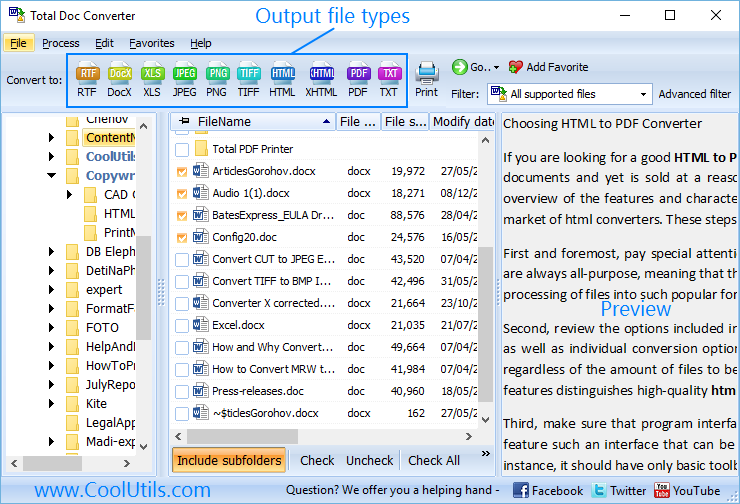
  • Step 1. Launch Total Doc Converter. Use the folder tree on the left to navigate to the directory that contains your Word files. The file list shows each document with its name, size, page count, and date.
  • Step 2. Select the files you want to convert. Click Check All to process every document in the folder, or tick individual files. You can mix DOC, DOCX, and RTF files in the same batch.
  • Step 3. Click the target format button in the toolbar — PDF, XLS, HTML, JPEG, TIFF, or any other supported format. The conversion wizard opens.
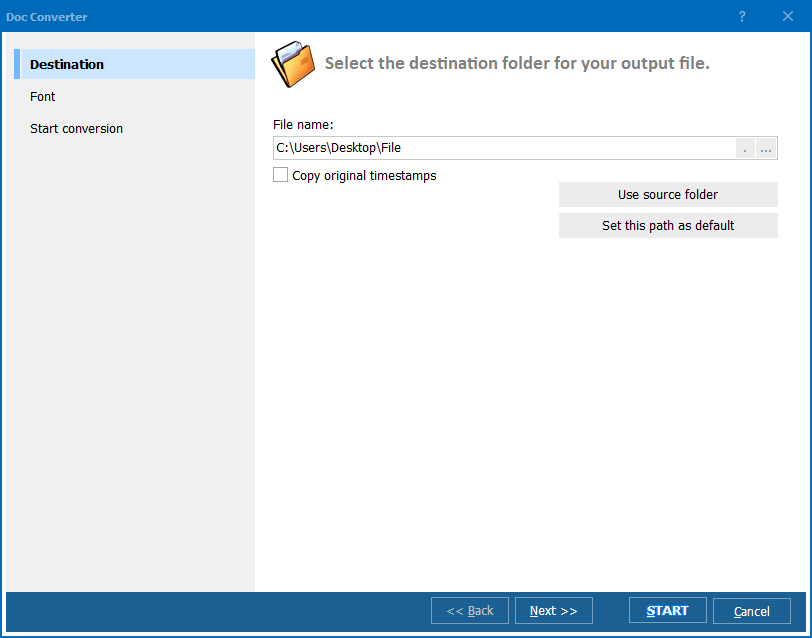
  • Step 4. Choose a destination folder for the output files.
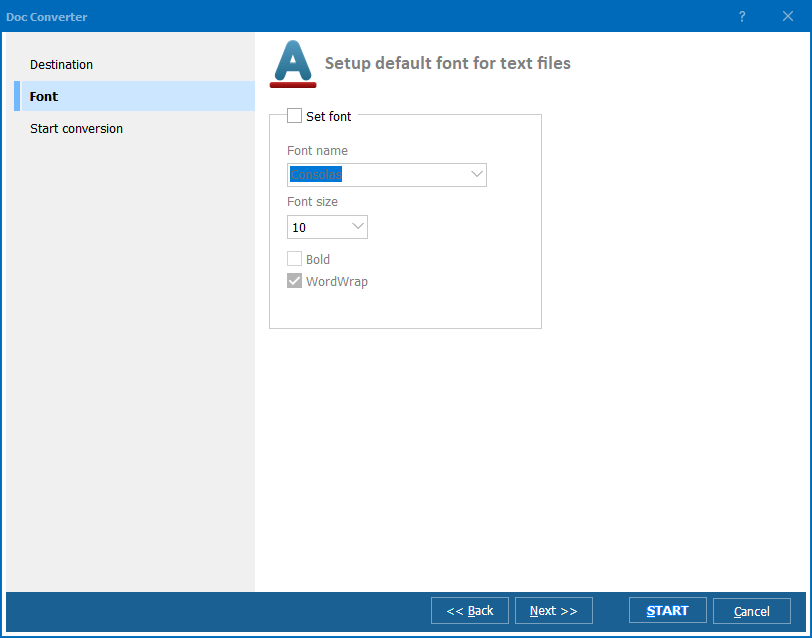
  • Step 5. Configure format-specific settings. For PDF: encryption, bookmarks, PDF/A compliance, watermarks. For images: DPI, quality, page range. For XLS: merge or split options.
  • Step 6. Press Start! The converter processes each file and saves the result. A progress bar tracks the batch.

Total Doc Converter handles mixed-format folders. Select DOC, DOCX, RTF, and TXT files together and convert them all to a single output format in one run.

Command-Line Conversion

Total Doc Converter includes a command-line interface for scripting and automation:

DocConverter.exe "C:\Reports\*.docx" -cPDF "C:\Output\" -cUserPassword test123

Specify the source path with wildcards, the target format flag (-cPDF, -cXLS, -cHTML, -cJPEG, etc.), and the destination folder. Add format-specific flags for encryption, quality, or page layout. Save the command in a .bat file and schedule it with Windows Task Scheduler for fully automated document conversion.

Why Use Total Doc Converter?

Green Plus15+ output formats. One tool converts Word documents to PDF, XLS, XLSX, HTML, XHTML, JPEG, PNG, TIFF, TXT, RTF, ODT, and more. No need to install separate converters for each format.

Green PlusNo Microsoft Office required. Total Doc Converter uses its own rendering engine to read DOC and DOCX files. It works on any Windows machine without Word, Excel, or any other office application installed.

Green PlusBatch processing. Convert entire folders of Word documents in one session. No file-count limit. The converter works through the queue automatically and reports results for each file.

Green PlusPDF security features. When converting to PDF, add user and owner passwords, restrict printing and copying, apply digital signatures, and enable PDF/A compliance for archival. All done during conversion — no post-processing needed.

Green PlusWatermarks and headers. Stamp text or image watermarks on every page. Add custom headers and footers with page numbers, dates, or filenames. These options work for PDF, image, and HTML outputs.

Green PlusWindows Explorer integration. Right-click any Word file in Windows Explorer and convert it directly from the context menu. No need to open the converter separately for quick one-off jobs.

Online Converters vs Desktop Converter

FeatureOnline ConvertersTotal Doc Converter
Batch conversionOne file at a timeEntire folders at once
Output formats2–5 formats15+ formats from one tool
PDF encryptionRarely availablePasswords, permissions, signatures
WatermarksNot availableText and image watermarks
File size limit5–50 MB per uploadNo limit
Speed (100 files)Hours of uploadingMinutes
Command-line automationNot possibleFull CLI + .bat scripting
PrivacyFiles uploaded to third-party servers100% offline — files stay on your PC
PricingFree with limitsOne-time $49.90

download Word converter

Windows 7/8/10/11 • 30-day free trial

When Do You Need a Word Converter?

There are several real-world scenarios where a dedicated Word converter saves time:
  1. Distributing documents as PDF. Clients, partners, or regulatory bodies expect PDF. Converting Word files to PDF preserves the layout and prevents unintended edits. Total Doc Converter adds encryption and digital signatures during conversion.
  2. Extracting data to Excel. Word tables contain numbers that need to be analyzed in Excel. Converting DOCX to XLS pulls the tabular data into real spreadsheet cells you can sort, filter, and calculate.
  3. Publishing to the web. Word documents destined for a website or intranet need to become HTML. Total Doc Converter outputs clean HTML with tables, images, and formatting preserved.
  4. Archiving as TIFF. Long-term document archives often require TIFF images. Converting Word files to multi-page TIFF creates compact, indexed image files that comply with archival standards.
  5. Migrating between office formats. You received DOC files but your organization uses DOCX, or ODT files that need to become RTF. Total Doc Converter handles cross-format conversion without opening each file individually.


Download Now!

(includes 30 day FREE trial)

Buy License

(only $49.90)


quote

Total Doc Converter Customer Reviews 2026

Rate It
Rated 4.7/5 based on customer reviews
5 Star

"We deal with hundreds of Word documents daily — invoices, shipping manifests, contracts. Total Doc Converter lets us batch-convert everything to PDF with password protection in one pass. The command-line mode plugs straight into our nightly processing script. What used to take a temp worker half a day now runs unattended in twenty minutes."

5 Star David Thornton Operations Manager, Whitfield Logistics

"Our editorial team writes in Word, but everything goes to the website as HTML. Total Doc Converter handles the DOCX-to-HTML conversion cleanly — tables, images, and formatting all come through. I drop a folder of articles in, click Start, and the HTML files are ready to upload. The 30-day trial convinced me in the first hour."

5 Star Sophie Laurent Web Content Coordinator

"I recommend Total Doc Converter to clients who need a simple, offline document conversion tool. It covers every direction I have been asked about — Word to PDF, Word to TIFF, Word to XLS, even ODT to DOCX. The only improvement I would like is a dark mode in the GUI, but functionally it does everything right."

4 Star Ricardo Mendes IT Consultant, Freelance

FAQ ▼

Total Doc Converter reads DOC (Word 97–2003), DOCX (Word 2007+), RTF, TXT, and ODT files. You can mix these formats in a single batch — select DOC and DOCX files together and convert them all to the same output format.
No. Total Doc Converter uses its own rendering engine to read and convert Word documents. Microsoft Word, Excel, and any other Office applications are not required.
Yes. When converting to PDF, Total Doc Converter lets you set user and owner passwords, restrict printing and text copying, and apply digital signatures. PDF/A compliance for archival is also available.
There is no file-count or file-size limit. Select an entire folder of Word documents and the converter processes them all in one session. Users regularly convert thousands of files in a single batch.
Yes. Total Doc Converter stamps text or image watermarks on every page during conversion. You can set the position, rotation, opacity, and font. Watermarks work for PDF, image, and HTML outputs.
Yes. The command-line mode accepts wildcards, format flags (-cPDF, -cXLS, -cHTML, etc.), and format-specific parameters. Save commands in .bat files and schedule them with Windows Task Scheduler for fully automated conversion.
Yes. Total Doc Converter outputs JPEG, PNG, and TIFF images. Each page of the document becomes a separate image file. You can control DPI, image quality, and page range.


Start working now!

Download free trial and convert your files in minutes.
No credit card or email required.

⬇ Download Free Trial Windows 7/8/10/11 • 84 MB

Friday Sale
Doc Converter Preview1
Doc Converter Preview2
Doc Converter Preview3

Latest News

Newsletter Subscribe

No worries, we don't spam.


© 2026. All rights reserved. CoolUtils File Converters

Cards